IIS: How to setup an FTP account to access a generic folder on a Windows server
03 November 2017
Categories: Windows Server, IIS
Posted in: Windows Server, IIS, FTP
This article will walk you through the creations of an FTP account on a Windows server. We will accomplish this by performing these operations:
create an FTP user, add an FTP site on IIS that points to a physical folder on the server, link the FTP site to the FTP user.
1. Create an FTP user account on the server
Launch "Computer Management" and navigate to "System Tools / Local Users and Groups / Users":
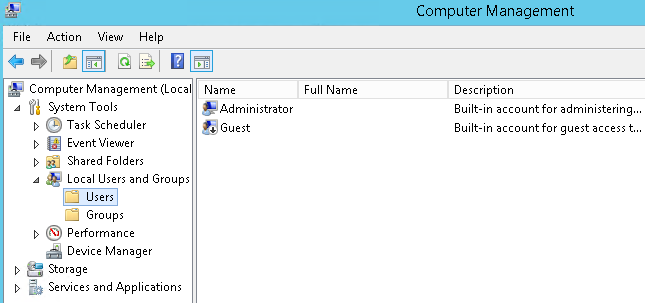
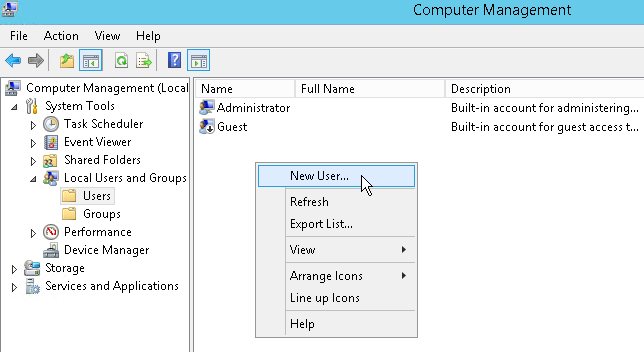
Create a new user account:
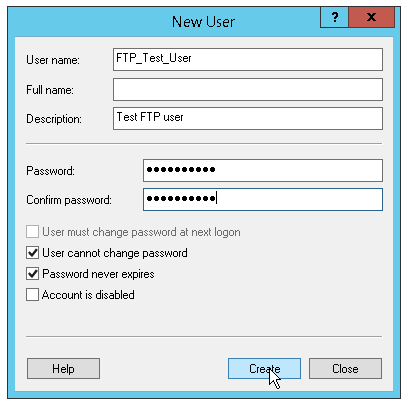
Type the user name, the password, choose a password renewal strategy then click the "Create" button:
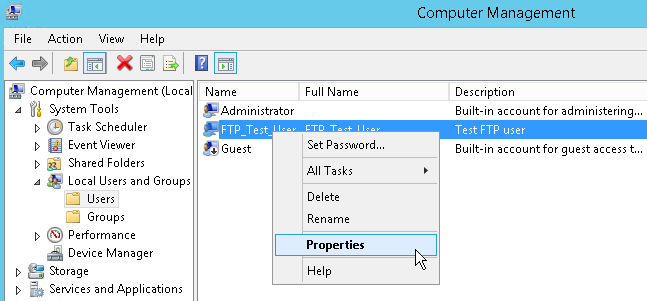
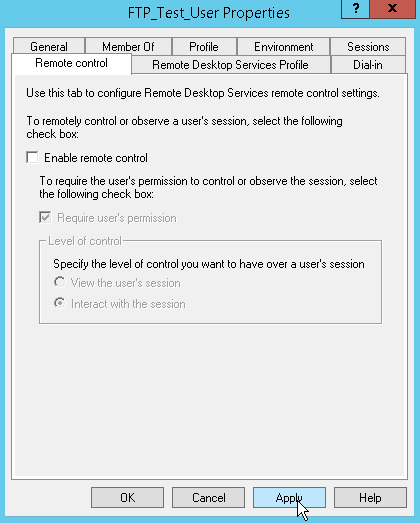
By default, a new windows user can remote control the server and this is something we obviously don't want to allow our FTP users to do. We need to deactivate remote access for our newly created acoount:
Deselect "Enable remote control" then click the "Apply" button:
Your FTP user account is now active, we need to associate it to an existing FTP site in IIS.
2. Create an FTP site on IIS and associate it to the FTP user account
When you create an FTP site, IIS will automatically adjust the security settings of the target folder to allow access by your FTP user. If you need to this manually, please follow these instructions: IIS: How to set folder rights for a web application
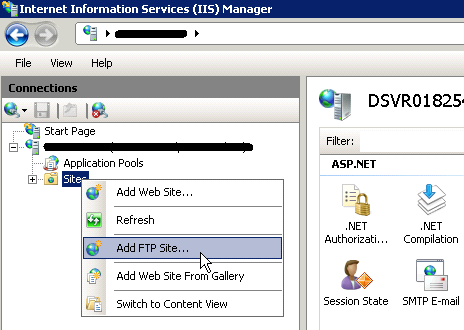
Launch "Internet Information Services", navigate to "Sites" and create a new FTP site:
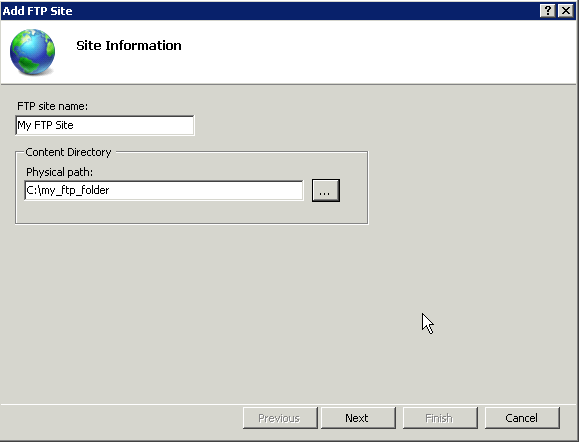
Provide a name for the FTP site in IIS and point it to your target folder:
Select an IP address and the port (21 is the standard port for FTP). You may optionally specify a domain that you will point to this server:

A note on FTP security
Since Windows servers do not support SFTP, I strongly advise you to protect your FTP connections with SSL (or SSH with SFTP). There are free SSL certificates that are very easy to setup: I use ZeroSSL because it's fast and simple to use. Let's Encrypt is another very popular provider of free SSL certificates. I suggest you watch this Google talk about SSL to learn more about it: Mythbusting HTTPS (2016)
If you do not set an SSL certificate for your FTP connection, a client will send connection data (including the password) in plain text.
Deselect anonymous authentication (otherwise anyone will be able to access the FTP site), allow access only to your FTP user.
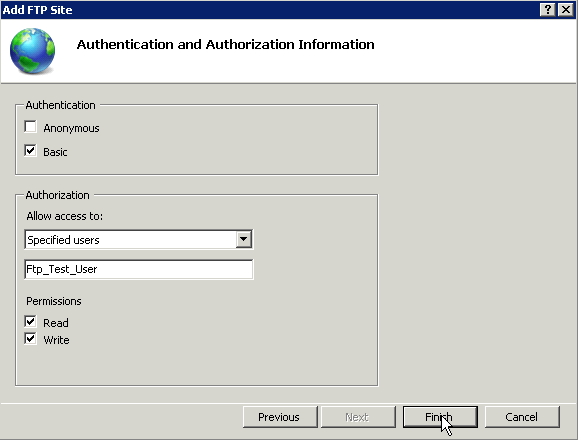
Your FTP account is now fully capable of connecting to your server.
3. Connect to your FTP site
To connect to the FTP site we need an FTP client. I'm using FileZilla, but any client will do. Here's the configuration:
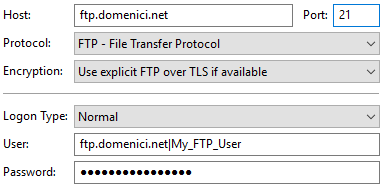
The host is the actual domain that I have pointed to my server, as specified in my FTP site's settings.
Warning: in order to connect to a Windows server via FTP we have to specify the user as "HOST|USERNAME". In our example, this becomes "ftp.domenici.net|My_FTP_User".
Hope this helps :)