Useful settings and rewrite rules for your website on IIS
10 September 2020
Categories: Windows Server, IIS
Posted in: IIS, Windows Server
Goals
- Set IIS to serve your website URLs in lower case.
- Set IIS to always use your canonical URL
- Set IIS to remove trailing slash characters when serving URLs
- Set IIS to serve all URLs over SSL
- Set IIS to serve all URLs from a reverse proxy
Useful settings and rewrite rules for your website on IIS
When you configure a new website on Windows IIS, it is good practive to set IIS to enforce some rules when serving your website's URLs. These rules are set via the URL Rewrite module on IIS.
First of all, we need to ensure that the URL Rewrite module is installed. Open IIS and select your website from the Sites folder on the left pane. On the right pane, locate the Http Features area and see if it includes URL Rewrite.
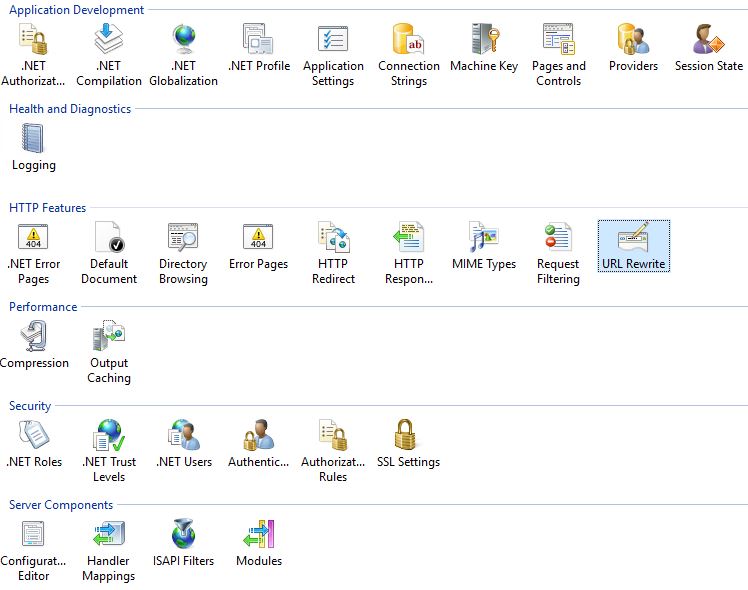
If the URL Rewrite module is not installed, you can download it with the Web Platform Installer. For more information visit the official URL Rewrite documentation

Rewrite rules
In this article we will see how to set some common rules for your website on IIS, such as:
- Set IIS to serve your website URLs in lower case.
- Set IIS to always use your canonical URL
- Set IIS to remove trailing slash characters when serving URLs
- Set IIS to serve all URLs over SSL
- Set IIS to serve all URLs from a reverse proxy
Rewrite rules can be set via the IIS interface, or directly on the web.config file of your website, an XML files that holds your website configuration on IIS. In this article we will work directly on the web.config file.
In the web.config file, rewrite rules are stored in the XML path configuration/system.webServer/rewrite/rules as one or more rule tags. For example, a rule that redirects all call to Google would look like this:
<configuration>
    <system.webServer>
        <rewrite>
            <rules>
                <rule name="Rewrite To Google Rule" stopProcessing="true">
                    <action type="Rewrite" url="https://google.com" />
                </rule>
            </rules>
        </rewrite>
    </system.webServer>
</configuration>
Rewrite Rule: Serve all URLs in lower case
If you want to ensure that IIS will serve your URLs in lover case, you can add the following rule:
<configuration>
    <system.webServer>
        <rewrite>
            <rules>
                <rule name="Lower Case Rule" stopProcessing="true">
                    <match url="[A-Z]" ignoreCase="false" />
                    <action type="Redirect" url="{ToLower:{URL}}" />
                </rule>
            </rules>
        </rewrite>
    </system.webServer>
</configuration>
Rewrite Rule: Use a canonical URL
It is important to serve your pages from a canonical URL. You can set the rule as follows:
<configuration>
    <system.webServer>
        <rewrite>
            <rules>
                <rule name="Canonical Host Name Rule">
                    <match url="(.*)" />
                    <conditions>
                        <add input="{HTTP_HOST}" pattern="^my-iis-website\.com$" negate="true" />
                    </conditions>
                    <action type="Redirect" url="https://my-iis-website.com/{R:1}" />
                </rule>
            </rules>
        </rewrite>
    </system.webServer>
</configuration>
Rewrite Rule: Remove trailing slash characters from your URLs
If you want to ensure that there are no trailing shashes in the URLs you serve, you can add the following rule:
<configuration>
    <system.webServer>
        <rewrite>
            <rules>
            <rule name="Remove Trailing Slash Rule" stopProcessing="true">
                    <match url="(.*)/$" />
                    <conditions>
                        <add input="{REQUEST_FILENAME}" matchType="IsDirectory" negate="true" />
                        <add input="{REQUEST_FILENAME}" matchType="IsFile" negate="true" />
                    </conditions>
                    <action type="Redirect" url="{R:1}" />
                </rule>
            </rules>
        </rewrite>
    </system.webServer>
</configuration>
Rewrite Rule: Serve all URLs over a secure connection via SSL
It is important to only server your URLs from a secure SSL connection. You can accomplish that with the following rule:
<configuration>
    <system.webServer>
        <rewrite>
            <rules>
                <rule name="SSL Rule" enabled="true" patternSyntax="Wildcard" stopProcessing="true">
                    <match url="*" negate="false" />
                    <conditions logicalGrouping="MatchAny">
                        <add input="{HTTPS}" pattern="off" />
                    </conditions>
                    <action type="Redirect" url="https://my-iis-website.com{REQUEST_URI}" redirectType="Found" />
                </rule>
            </rules>
        </rewrite>
    </system.webServer>
</configuration>
Rewrite Rule: Configure a reverse proxy
If we want to configure a reverse proxy for our website, we need to instruct IIS to redirect all URL requests to an internal address. This is accomplished as follows:
<configuration>
    <system.webServer>
        <rewrite>
            <rules>
                <rule name="Reverse Proxy Rule" stopProcessing="true">
                    <match url="(.*)" />
                    <action type="Rewrite" url="http://localhost:4909/{R:1}" />
                </rule>
            </rules>
        </rewrite>
    </system.webServer>
</configuration>
Applying multiple rewrite rules
If you want to apply more than one rule at the same time, you can list them all in the configuration/system.webServer/rewrite/rules tag. Note: The order is which they appear in the XML file is important, as rewrite rules are executed sequencially. Here's a sample web.config file that includes all the rules presented in this article:
<configuration>
    <system.webServer>
        <rewrite>
            <rules>
                <rule name="Lower Case Rule" stopProcessing="true">
                    <match url="[A-Z]" ignoreCase="false" />
                    <action type="Redirect" url="{ToLower:{URL}}" />
                </rule>
                <rule name="Canonical Host Name Rule">
                    <match url="(.*)" />
                    <conditions>
                        <add input="{HTTP_HOST}" pattern="^my-iis-website\.com$" negate="true" />
                    </conditions>
                    <action type="Redirect" url="https://my-iis-website.com/{R:1}" />
                </rule>
                <rule name="Remove Trailing Slash Rule" stopProcessing="true">
                    <match url="(.*)/$" />
                    <conditions>
                        <add input="{REQUEST_FILENAME}" matchType="IsDirectory" negate="true" />
                        <add input="{REQUEST_FILENAME}" matchType="IsFile" negate="true" />
                    </conditions>
                    <action type="Redirect" url="{R:1}" />
                </rule>
                <rule name="SSL Rule" enabled="true" patternSyntax="Wildcard" stopProcessing="true">
                    <match url="*" negate="false" />
                    <conditions logicalGrouping="MatchAny">
                        <add input="{HTTPS}" pattern="off" />
                    </conditions>
                    <action type="Redirect" url="https://my-iis-website.com{REQUEST_URI}" redirectType="Found" />
                </rule>
                <rule name="Reverse Proxy Rule" stopProcessing="true">
                    <match url="(.*)" />
                    <action type="Rewrite" url="http://localhost:4909/{R:1}" />
                </rule>
            </rules>
        </rewrite>
	</system.webServer>
</configuration>
Save your web.config file, open a browser window and navigate to your website to ensure all the rules are applied properly.
Hope this helps ;)