Deploying a Go (golang) application on Windows Server using IIS and a reverse proxy
23 January 2022
Categories: Windows Server, IIS
Posted in: Go, IIS, Windows Server, Reverse Proxy
Goals
- Compile a GO application for WIndows 64 bit
- Deploy a GO application on IIS with a reverse proxy
- Launch a GO application as a Windows service
Deploying a GO application on Windows server using IIS and a reverse proxy
Running a GO application on Windows Server is not hard, this article will teach you how to do it by setting up a windows service that runs your GO app in IIS via a reverse proxy.
We will perform the following actions (the order matters):
- Compile your GO application to run on 64 bit Windows Server
- Deploy and test the GO application
- Create a website on IIS for our GO application
- Configure the reverse proxy on IIS
- Create a Windows Service to run our GO application automatically
Step 1: Compile your GO application to run Windows 64 bit
Since GO code is compiled to a native executable file, there is no need to install GO on your Windows Server. You will compile your application to run on a 64 bit Windows machine.
If you are developing on a 64-bit Windows machine (e.g. Windows 10 64 bit), open your development environment and run the build command to compile your GO application to a Windows executable file:
go build
If you wish to compile a binary file without symbols and debug information, you can run the command:
go build -ldflags "-s -w"
If you are not compiling on a 64-bit Windows server, you need to tell GO to compile you source code for a 64-bit Windows machine. This is accomplished by setting the GOOS and GOARCH
environment variables on your system.
To compile for a 64-bit Windows machine, set your environment variables as follows, before you run the build command:
GOOS = windows
GOARCH = arm64
For more information on GO's enviroment variables and how to compile for different operating systems, please refer to https://go.dev/doc/install/source#environment
Step 2: Deploy and test the GO application on Windows Server
Copy your application's executable file, together with all needed additional files (e.g. configuration files, web assets, etc.) to a folder on your Windows server. For example, C:\websites\myGoSite
You should now be able to test your application: assuming your application name is a web service named app.exe and listening on port 9000, Open a command prompt and type: C:\websites\myGoSite\app.exe
Your application will start running and you will see any console ouput directly on the command prompt window.
Without closing the command prompt to let your application running, open your browser and navigate to: http://localhost:9000
You will now see whatever output your application is set to serve when it's root URL is called.
If your application has a route named "my-route" that responds to HTTP GET requests, you'll find it at http://localhost:9000/my-route
Step 3: Create a website on IIS for your GO application
Now that you have installed your GO application on the server, we need to configure IIS so that the application will be visible on the internet.
You can follow the instruction on my article IIS: How to setup a web site to create a new website on IIS:
you'll tell IIS which folder to use as a website and you'll configure the bindings, to ensure your domain name (for example, https://my-go-service.com) maps to the website.
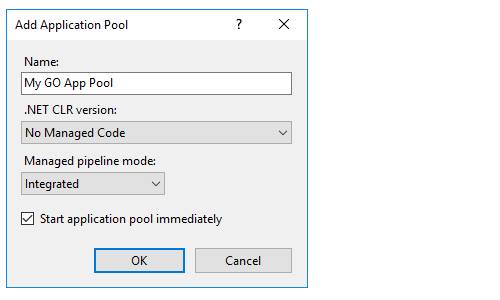
Once you have created your website, in IIS find your site's application pool and ensure it is not set to run .NET, as in this image:
Step 4: Configure the reverse proxy on IIS
Before we can use our website, nee need to configure the reverse proxy to ensure IIS will point to our GO application's localhost port.
Open your app's folder in Windows Eplorer and create a new file called web.config (or edit the existing one if IIS created it for you) then add a rewrite rule for your website, as follows:
<configuration>
    <system.webServer>
        <rewrite>
            <rules>
                <rule name="ReverseProxyInboundRule1" stopProcessing="true">
                    <match url="(.*)" />
                    <action type="Rewrite" url="http://localhost:9000/{R:1}" />
                </rule>
            </rules>
        </rewrite>
    </system.webServer>
</configuration>
This rule will tell IIS to stop processing all request and forward them to your GO website at http://localhost:9000
You can of course add any number of rules to the web.config file. I usually add at least the following rules:
- Lower Case Rule: forces IIS to serve all URLs in lower case.
- Canonical Host Name Rule: forces IIS to always use your canonical URL
- Remove Trailing Slash Rule: forces IIS to remove trailing slash characters when serving URLs
- SSL Rule: forces IIS to serve all URLs over SSL
If you want to apply these additional rules please read my article Useful settings and rewrite rules for your website on IIS.
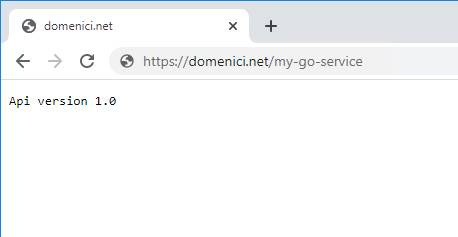
When you are done adding rewrite rules save your web.config file, open a browser window and go to your domain's URL (e.g. https://my-go-service.com) to ensure the reverse proxy is working correctly:
if you see the expected contents, your service is properly configured and now accessible online.
Step 5: Create a Windows Service to run our GO application automatically
As a final step, we need to create a Windows service to ensure our GO website is always running and automatically restarted if it ever crashes.
There are many tool that allow you to create a service on Windows, I will show you how to do that with a free tool called NSSM (Non-Sucking Service Manager) that you can download from the official website at nssm.cc
This tool allows you create a windows service that will run your GO executable file C:\websites\myGoSite\app.exe when Windows starts, launching your GO application and restarting it automatically in case it stops or crashes.
First of all download the executable nssm.exe, then run the NSSM tool from an elevated command prompt. NSSM has many settings that you can use from the command line, but the simplest way is to run nssm.exe install to launch the UI of the tool.
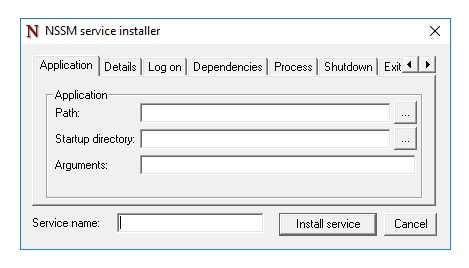
Set the path to the GO executable file: for example, C:\websites\myGoSite\app.exe
Set the service name (the name that will appear in the Windows services list). For example, mygosite
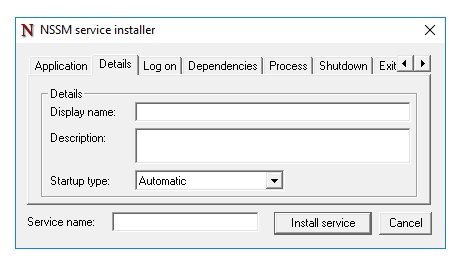
Click the Details tab, set a description for your service (e.g. Service for My GO Website). You must also ensure the startup type is set to Automatic. This will ensure that your website is started automaticall when Windows starts.
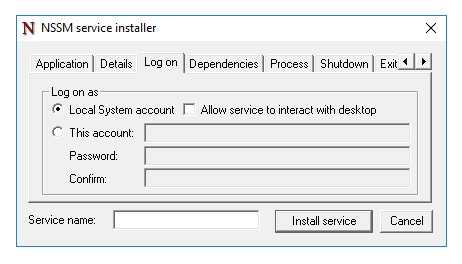
Click the Log on tab and ensure that the logon type is Local System Account. This is needed to ensure that your app runs at all times, even when there's no desktop user connected to the server.
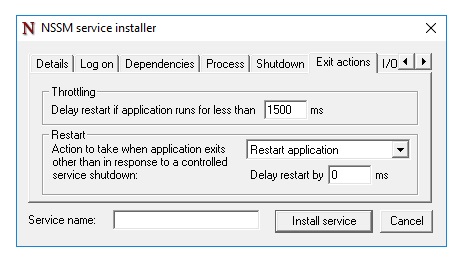
Click the Exit actions tab and ensure that the restart option is set to Restart application. This will ensure that your application is restarted if it ever crashes.
Click the button Install Service and NSSM will create the new Windows service for you.
To make sure the service was created succesfully open Computer Management on your server then go to Applications/Services on the left pane. On the right pane you will see the list of all services installed on your server.
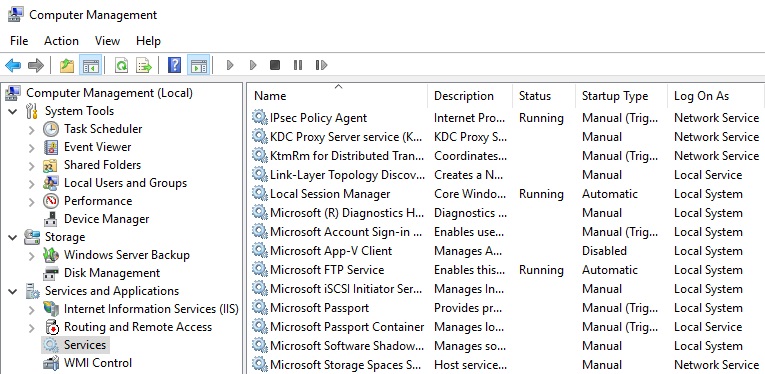
Locate your service mynodejssite and ensure that:
- the server status is
Running - the server startup type is
Automatic - the server logs on as a
Local Service
Double click your service and on the details window click the Recovery tab.
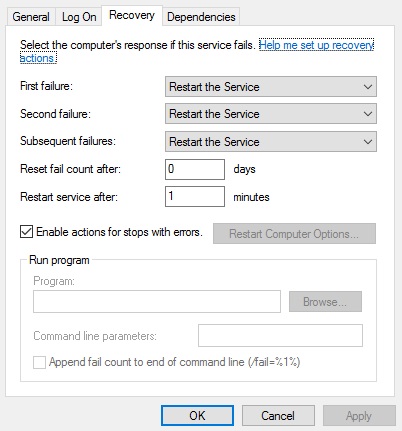
Make sure that:
- First failure is set to
Restart the Service - Second failure is set to
Restart the Service - Subsequent failure is set to
Restart the Service
Note: if you need to unistall the service, you can do so by running nssm.exe remove mygosite from an elevated command prompt.
Conclusion
This article showed you a way to configure and run GO applications and web services on Windows Server with IIS and a reverse proxy.
Hope this helps ;)